
5. 於 macOS 使用 Python
This document aims to give an overview of macOS-specific behavior you should know about to get started with Python on Mac computers. Python on a Mac running macOS is very similar to Python on other Unix-derived platforms, but there are some differences in installation and some features.
There are various ways to obtain and install Python for macOS. Pre-built versions of the most recent versions of Python are available from a number of distributors. Much of this document describes use of the Pythons provided by the CPython release team for download from the python.org website. See Alternative Distributions for some other options.
5.1. Using Python for macOS from python.org
5.1.1. 安裝步驟
For current Python versions
(other than those in security status), the release team produces a
Python for macOS installer package for each new release.
A list of available installers
is available here.
We recommend using the most recent supported Python version where possible.
Current installers provide a
universal2 binary build
of Python which runs natively on all Macs (Apple Silicon and Intel) that are
supported by a wide range of macOS versions,
currently typically from at least macOS 10.15 Catalina on.
The downloaded file is a standard macOS installer package file (.pkg).
File integrity information (checksum, size, sigstore signature, etc) for each file is included
on the release download page. Installer packages and their contents are signed and notarized
with Python Software Foundation Apple Developer ID certificates
to meet macOS Gatekeeper requirements.
For a default installation, double-click on the downloaded installer package file. This should launch the standard macOS Installer app and display the first of several installer windows steps.
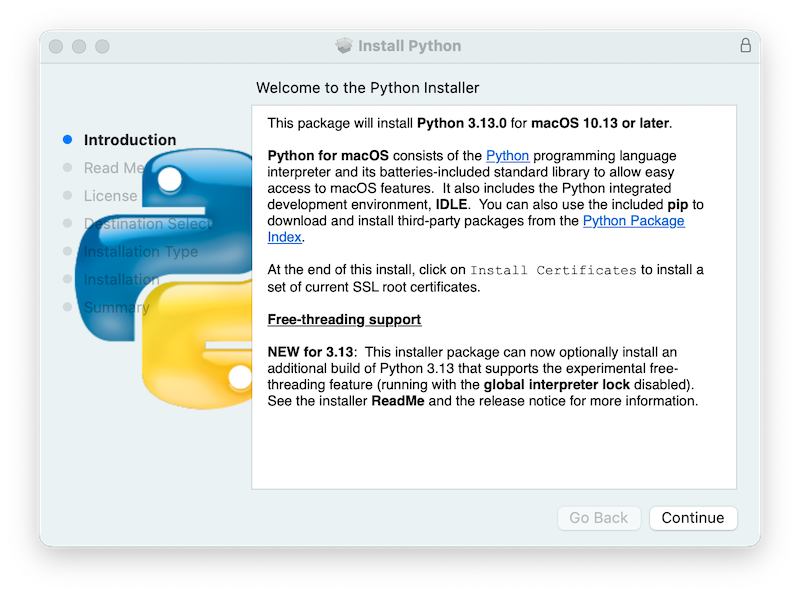
Clicking on the Continue button brings up the Read Me for this installer.
Besides other important information, the Read Me documents which Python version is
going to be installed and on what versions of macOS it is supported. You may need
to scroll through to read the whole file. By default, this Read Me will also be
installed in /Applications/Python 3.14/ and available to read anytime.
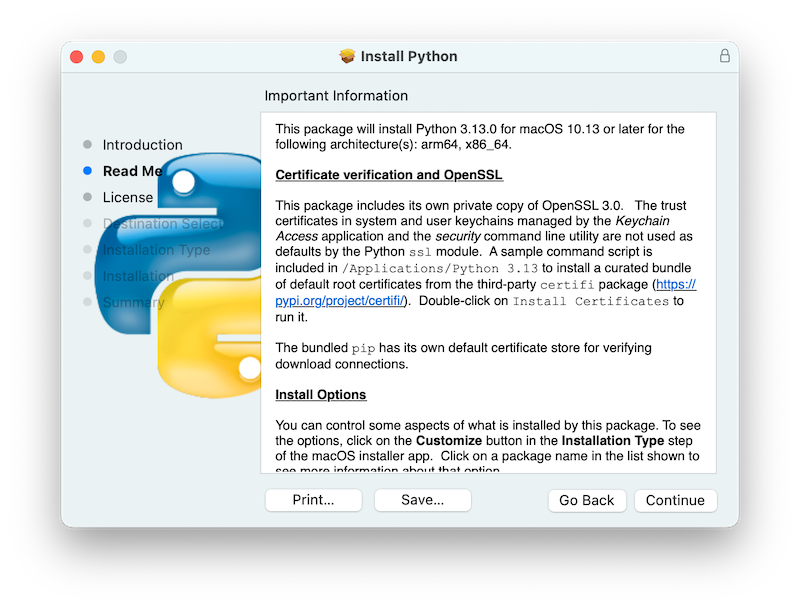
Clicking on Continue proceeds to display the license for Python and for other included software. You will then need to Agree to the license terms before proceeding to the next step. This license file will also be installed and available to be read later.
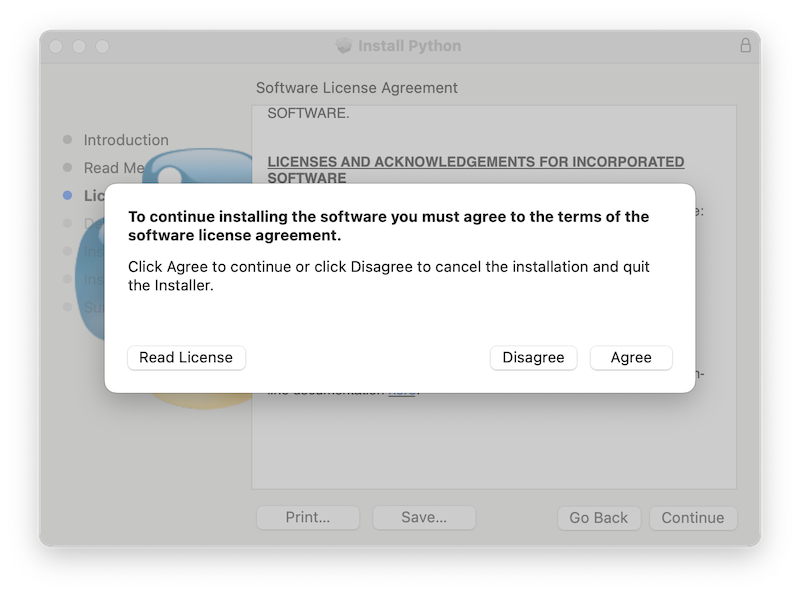
After the license terms are accepted, the next step is the Installation Type display. For most uses, the standard set of installation operations is appropriate.
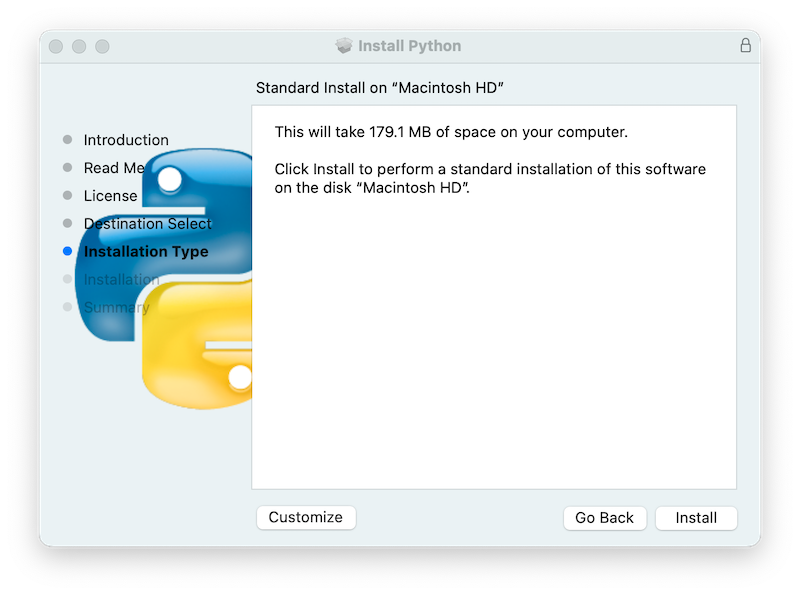
By pressing the Customize button, you can choose to omit or select certain package components of the installer. Click on each package name to see a description of what it installs. To also install support for the optional free-threaded feature, see Installing Free-threaded Binaries.
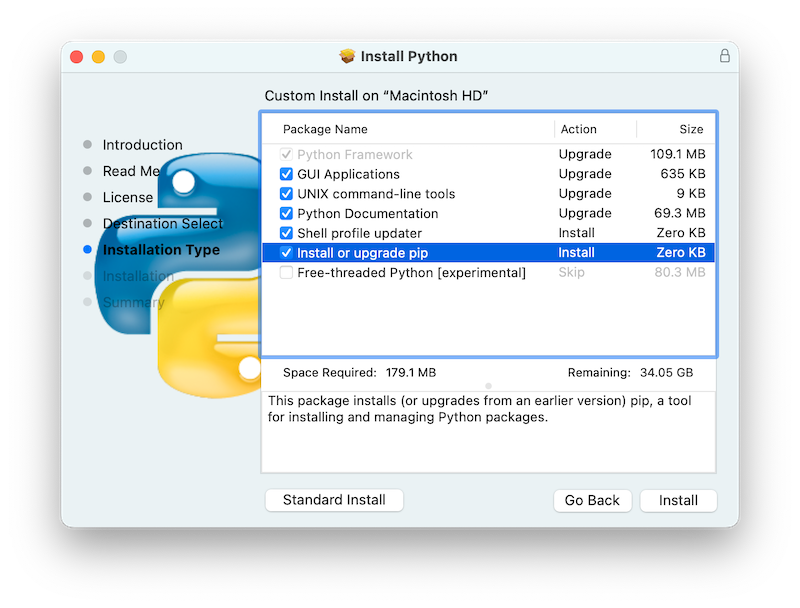
In either case, clicking Install will begin the install process by asking
permission to install new software. A macOS user name with Administrator privilege
is needed as the installed Python will be available to all users of the Mac.
When the installation is complete, the Summary window will appear.
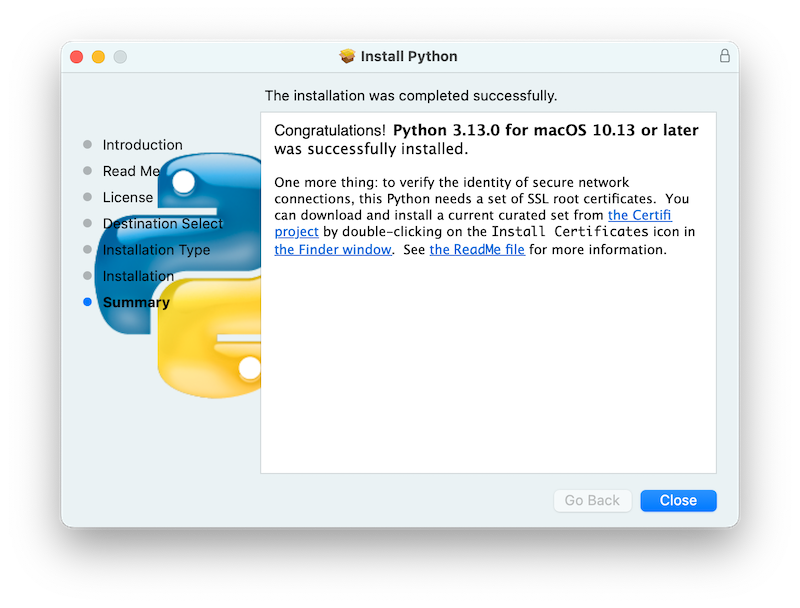
Double-click on the Install Certificates.command
icon or file in the /Applications/Python 3.14/ window to complete the
installation.
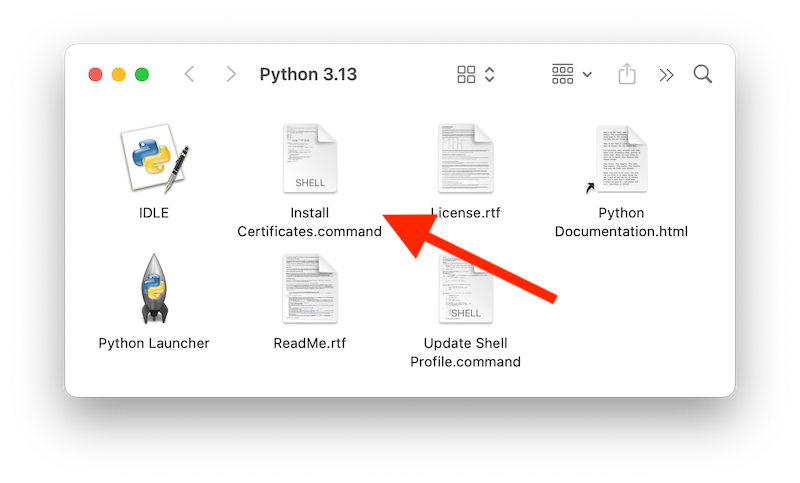
This will open a temporary Terminal shell window that will use the new Python to download and install SSL root certificates for its use.
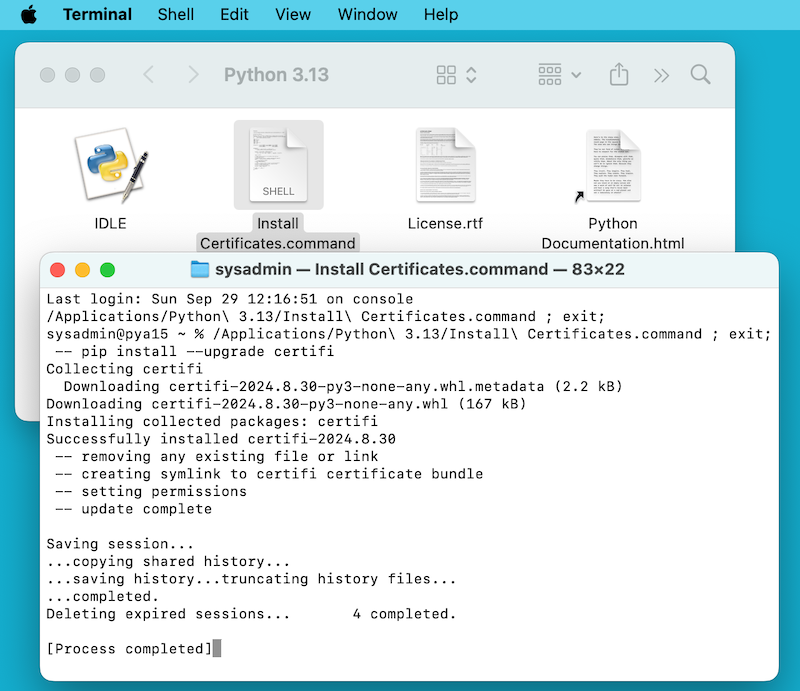
If Successfully installed certifi and update complete appears
in the terminal window, the installation is complete.
Close this terminal window and the installer window.
預設安裝會包含:
會有一個
Python 3.14資料夾在你的Applications資料夾中。在這裡你可以找到 IDLE,它是作為官方 Python 發行版標準組成的開發環境;以及 Python Launcher,它負責處理在 Finder 中雙擊 Python 腳本的操作。/Library/Frameworks/Python.framework框架,包括 Python 可執行檔案 (executable) 和函式庫 (library)。安裝程式將此位置新增到 shell 路徑。要解除安裝 Python ,你可以移除這三個東西。Python 可執行檔案的符號連結 (symlink) 則放在/usr/local/bin/中。
備註
Recent versions of macOS include a python3 command in /usr/bin/python3
that links to a usually older and incomplete version of Python provided by and for use by
the Apple development tools, Xcode or the Command Line Tools for Xcode.
You should never modify or attempt to delete this installation, as it is
Apple-controlled and is used by Apple-provided or third-party software. If
you choose to install a newer Python version from python.org, you will have
two different but functional Python installations on your computer that
can co-exist. The default installer options should ensure that its python3
will be used instead of the system python3.
5.1.2. 如何執行 Python 腳本
There are two ways to invoke the Python interpreter.
If you are familiar with using a Unix shell in a terminal
window, you can invoke python3.14 or python3 optionally
followed by one or more command line options (described in 命令列與環境).
The Python tutorial also has a useful section on
using Python interactively from a shell.
You can also invoke the interpreter through an integrated development environment. IDLE --- Python 編輯器與 shell is a basic editor and interpreter environment which is included with the standard distribution of Python. IDLE includes a Help menu that allows you to access Python documentation. If you are completely new to Python, you can read the tutorial introduction in that document.
There are many other editors and IDEs available, see 編輯器與 IDE for more information.
To run a Python script file from the terminal window, you can invoke the interpreter with the name of the script file:
python3.14myscript.py
從 Finder 執行你的腳本時,你可以:
把它拖曳到 Python Launcher
透過 Finder Info 視窗選擇 Python Launcher 作為開啟腳本(或任何
.py腳本)的預設應用程式,然後雙擊腳本。Python Launcher 有各種用來控制腳本啟動方式的選項。拖曳選項可以讓你一次更改多個選項,或使用其Preferences選單以全域性地更改內容。
Be aware that running the script directly from the macOS Finder might produce different results than when running from a terminal window as the script will not be run in the usual shell environment including any setting of environment variables in shell profiles. And, as with any other script or program, be certain of what you are about to run.
5.2. Alternative Distributions
Besides the standard python.org for macOS installer, there are third-party
distributions for macOS that may include additional functionality.
Some popular distributions and their key features:
- ActivePython
Installer with multi-platform compatibility, documentation
- Anaconda
Popular scientific modules (such as numpy, scipy, and pandas) and the
condapackage manager.- Homebrew
Package manager for macOS including multiple versions of Python and many third-party Python-based packages (including numpy, scipy, and pandas).
- MacPorts
Another package manager for macOS including multiple versions of Python and many third-party Python-based packages. May include pre-built versions of Python and many packages for older versions of macOS.
Note that distributions might not include the latest versions of Python or other libraries, and are not maintained or supported by the core Python team.
5.4. 開發 GUI 程式
於 Mac 上使用 Python 來建立 GUI 應用程式有許多選項。
標準的 Python GUI 工具套件是基於跨平臺 Tk 工具套件 (https://www.tcl.tk) 的 tkinter。macOS 原生版本的 Tk 有包含於安裝程式中。
PyObjC 是一個 Apple Objective-C/Cocoa 框架的 Python 繫結 (binding)。有關 PyObjC 的資訊請見 pyobjc。
有許多替代 macOS GUI 工具套件可用,包含:
PySide:Qt GUI 工具包的官方 Python 繫結。
PyQt:Qt 的替代 Python 繫結。
Kivy:一個支援桌面和行動平臺的跨平臺 GUI 工具包。
Toga:BeeWare 專案的一部分;支援桌面、行動、網頁和控制台應用程式。
wxPython:一個支援桌面作業系統的跨平臺工具包。
5.6. 其他資源
The python.org Help page has links to many useful resources. The Pythonmac-SIG mailing list is another support resource specifically for Python users and developers on the Mac.