HTTPS-Only Mode in Firefox | Firefox Help

Firefox
Firefox
 Last updated:
6 days ago
Last updated:
6 days ago
 73% of users voted this helpful
HTTPS-Only Mode in Firefox forces all connections to websites to use a secure encrypted connection called HTTPS. Most websites already support HTTPS; some support both HTTP and HTTPS. Enabling this mode guarantees that all of your connections to websites are upgraded to use HTTPS and hence secure. Learn more about the benefits and how to enable HTTPS-Only Mode.
Table of Contents
What is the difference between HTTP and HTTPS?
HTTP stands for Hypertext Transfer Protocol. It is the fundamental protocol for the web and encodes basic interactions between browsers and web servers. The problem with the regular HTTP protocol is that the data transferring from server to browser is not encrypted, meaning data can be viewed, stolen or altered. HTTPS protocols fix this by using a Transport Layer Security (TLS) certificate. This creates a secure encrypted connection between the server and the browser, which protects sensitive information.
About HTTPS-Only Mode
When you use HTTPS-Only Mode, this ensures all of your connections are encrypted and secure. So you have peace of mind that no one can snoop on the content of the pages you visit or hack into your connection to a website to steal your passwords, credit card information or other personal information. This is especially useful when you are using a public Wi-Fi, where you can’t be sure of the integrity of your internet connection.
For example, when HTTPS-Only Mode is active and a site is visited such as http://example.com, Firefox will silently upgrade to https://example.com:

Enable/Disable HTTPS-Only Mode
To learn more about upgrades to secure connections, see Firefox connection upgrades - HTTP to HTTPS.
“Secure Site Not Available” page
Some websites only support HTTP and the connection cannot be upgraded. If HTTPS-Only Mode is enabled and an HTTPS version of a site is not available, you will see a Secure Site Not Available page.
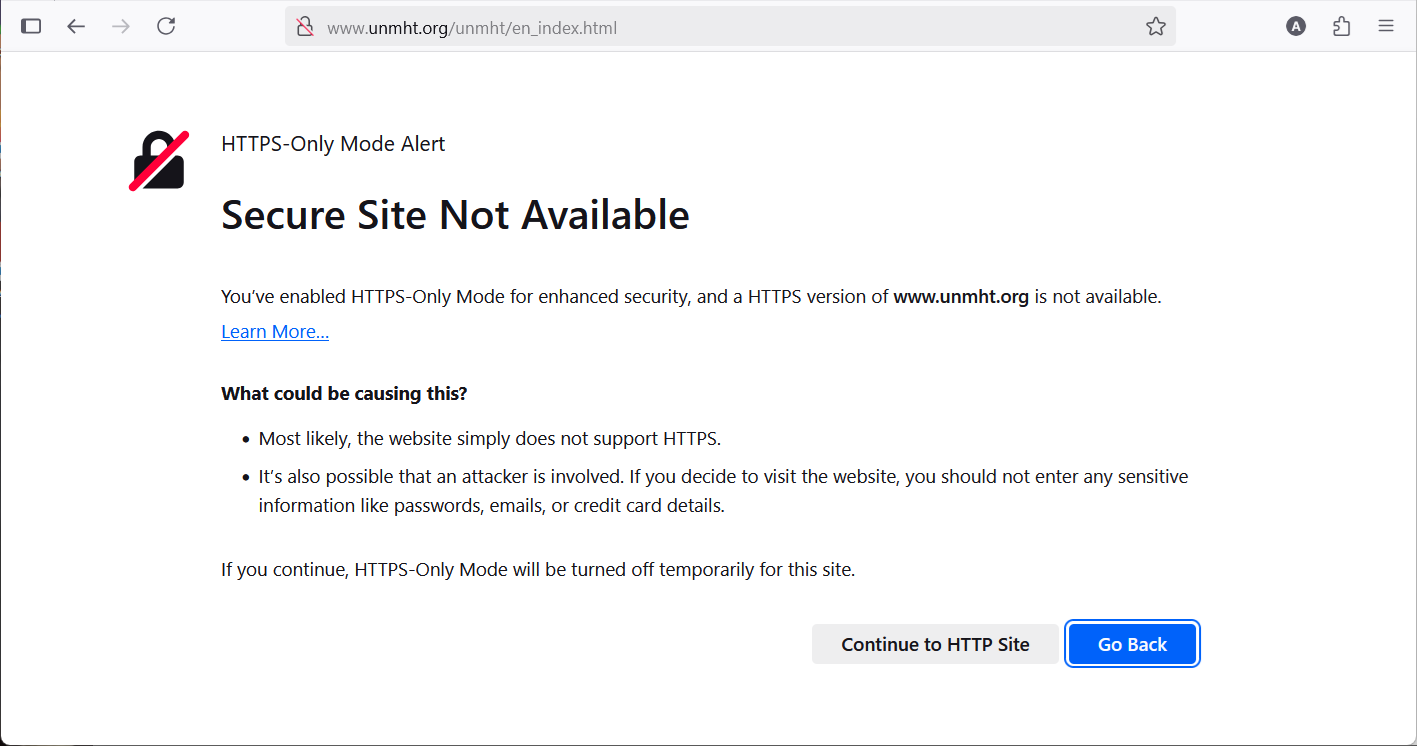
- Click Continue to HTTP Site to accept the risk, and visit an HTTP version of the site. HTTPS-Only Mode will be turned off temporarily for that site.
- Click Go Back if you want to avoid any unencrypted connections.
Turn off HTTPS-Only Mode for certain sites
If HTTPS-Only Mode is enabled, and you frequently visit a website that does not support HTTPS or does not seem to be rendering certain elements of the page correctly, you can turn off HTTPS-Only Mode for that site.
Add exceptions for HTTP websites when you’re in HTTPS-Only Mode
If a website isn’t displaying correctly, and it’s one you trust and want to visit, you can turn off HTTPS-Only Mode for that site. Exceptions allow you to visit an HTTP version of a website while you’re browsing in HTTPS-Only Mode. Exceptions can be applied temporarily for a single browsing session, or permanently. To add an exception for a website:
These fine people helped write this article:

Volunteer
Grow and share your expertise with others. Answer questions and improve our knowledge base.