Taking Screenshots Programmatically with Python
The method of programming screenshots may be useful in some situations such as for example automated testing or producing documentaries on failures and instructional content. Being a dynamic language that it is, Python has several libraries such as pytest which are user friendly to use; out of these, pyscreenshot is regarded as one of the easiest and fastest. With this tool, screens can be captured for an entire monitor or just part of it.
Installation
Before we start the code, it's necessary to install the pyscreenshot library. This can be done easily through pip.
Syntax
pip install pyscreenshot
Also, make sure you install the Python library pillow in your system, which will help you with image processing capabilities.
Syntax
pip install pillow
Basic Screenshot
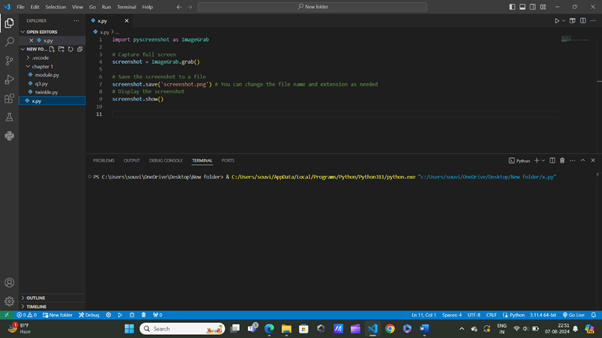
The easiest way to take a screenshot is to capture the entire screen. The ImageGrab.grab() captures the whole screen and returns it as an image object. The screenshot.show() opens the captured screenshot in the default image viewer.
Example
import pyscreenshot as ImageGrab

# Capture full screen
screenshot = ImageGrab.grab()

# Save the screenshot to a file
screenshot.save('screenshot.png') # You can change the file name and extension as needed
# Display the screenshot
screenshot.show()
Output
The screenshot will be displayed in the default image viewer.
Capturing a Specific Region
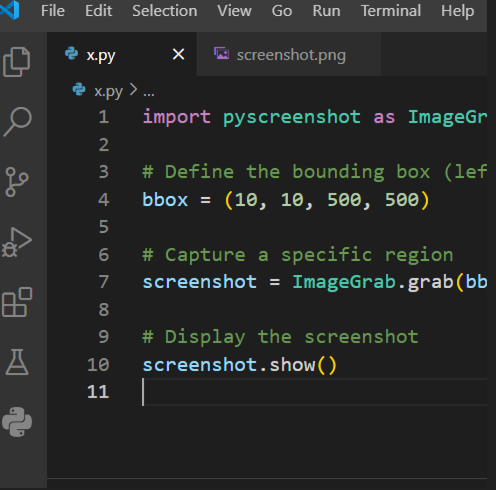
Sometimes, you only need a portion of the screen not the whole portion. In this case, you can specify capture a specific region. The bbox is a tuple defining the region to capture and the ImageGrab.grab(bbox=bbox) captures the specified region.
Example
import pyscreenshot as ImageGrab

# Define the bounding box (left_x, top_y, right_x, bottom_y)
bbox = (10, 10, 500, 500)

# Capture a specific region
screenshot = ImageGrab.grab(bbox=bbox)

# Display the screenshot
screenshot.show()
Output
The defined region will be displayed in the default image viewer.
Saving the Screenshot
To save the captured screenshot to a file, use the save method. The screenshot.save('screenshot.png') saves the screenshot to a file named screenshot.png.
Example
import pyscreenshot as ImageGrab

# Capture full screen
screenshot = ImageGrab.grab()

# Save the screenshot to a file
screenshot.save('screenshot.png')
Output
The screenshot is saved as screenshot.png in the current working directory.
Adding Delay Before Taking a Screenshot
Introducing a delay before capturing the screenshot can be useful in various scenarios. The time.sleep(5) pauses execution for 5 seconds before taking the screenshot.
Example
import pyscreenshot as ImageGrab
import time

# Delay for 5 seconds
time.sleep(5)

# Capture full screen
screenshot = ImageGrab.grab()

# Display the screenshot
screenshot.show()
Output
The screenshot is taken after a 5-second delay and displayed in the default image viewer.
Taking Multiple Screenshots in Succession
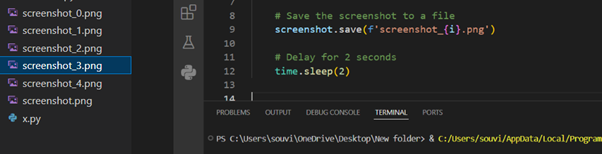
You might need to capture multiple screenshots in quick succession. The loop captures five screenshots, each saved with a unique filename. The time.sleep(2) introduces a 2-second delay between each capture.
Example
import pyscreenshot as ImageGrab
import time

for i in range(5):
   # Capture full screen
   screenshot = ImageGrab.grab()

   # Save the screenshot to a file
   screenshot.save(f'screenshot_{i}.png')

   # Delay for 2 seconds
   time.sleep(2)
Output
Five screenshots are saved as screenshot_0.png, screenshot_1.png, screenshot_2.png, screenshot_3.png, and screenshot_4.png.
Look at that it will create multiple images screenshots
Adding White Text to Screenshots
Sometimes, you may want to add text to your screenshots for annotations or labels. Below is an example of how to add white text to a screenshot using the Pillow library in Python. This example captures a screenshot, adds white text to it, and then saves and displays the modified image.
Installation
Before start the code, you must install the pillow library. This can be done easily using pip.
pip install pillow
Example
from PIL import Image, ImageDraw, ImageFont
import pyscreenshot as ImageGrab

# Define the text to add
x = "Hello, World!"

try:
   # Capture the screenshot
   screenshot = ImageGrab.grab()

   # Create an ImageDraw object
   draw = ImageDraw.Draw(screenshot)

   # Load a font
   try:
      # Use a truetype font (you can download a .ttf file and specify the path here)
      font = ImageFont.truetype("arial.ttf", size=50)
   except IOError:
      # Fallback to default font if the specified font is not available
      font = ImageFont.load_default()

   # Define the position and color for the text
   text_position = (50, 50)  # Adjusted position
   text_color = "white"  # Change text color to white

   # Add text to the screenshot
   draw.text(text_position, x, font=font, fill=text_color)

   # Save the screenshot with text
   screenshot.save('screenshot_with_text.png')

   # Display the screenshot
   screenshot.show()

   print("Screenshot captured and saved successfully.")

except Exception as e:
   print(f"An error occurred: {e}")
Output

Conclusion
In this guide, we show you various techniques for capturing screenshots using pyscreenshot in Python. From basic full-screen captures to targeting specific regions, saving files, adding delays, and taking multiple screenshots in succession, pyscreenshot proves to be a versatile tool for automation and instructional content creation.
python_projects_from_basic_to_advanced.htm